Add Photos

Add Photos To Your Certified Vehicle To Inventory

To add photos to your Certified Vehicle, click EDIT next to the vehicle in the Inventory screen.

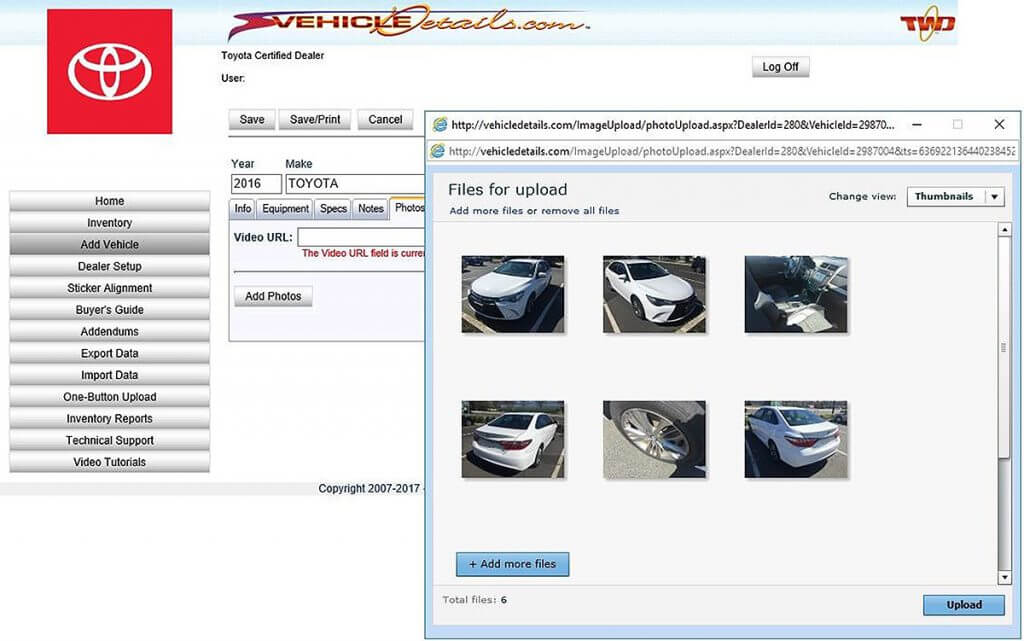
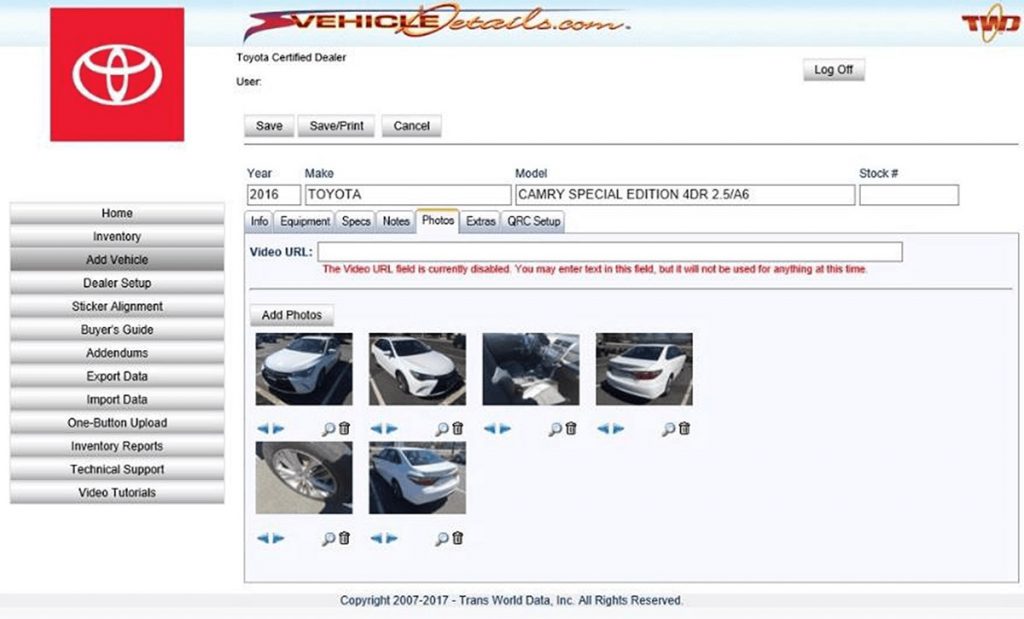
  • In the Vehicle Build screen, click the Photos Tab at the top
  • Click the Add Button, the Photo Tool will be a pop-up window. If you do not have Flash installed on your computer, you may be prompted to install the Flash Component in order to use our Photo Tool. Please follow the on-screen prompts to install or update the Flash Component. If the tool is already installed, you can continue with adding photos.
  • Click the Add More Files Button in the Photo Tool Window. A browser window will pop-up.
  • Browse to your Photos Location on your computer and select the photo that you would like to add to your certified vehicle. You may select multiple photos at one time. For best results, select only 10 Photos at one time to Upload. You can add more photos at any time.
  • Individual Photo Size should not exceed 3.5 MB.
  • Click Upload to Continue. Wait for the upload to complete. Your uploaded images will appear in the Photos Tab of the Vehicle Build Screen after the upload is complete. After your photos have been added to your Certified Vehicle, click the SAVE button at the top to save this vehicle to your inventory.

Add Photos

Add Photos #1
Add Photos #2

Program Manuals

PROGRAM PDF TCUV TRAINING DECK POLICY & PROCEDURE

Contact your JM&A Group Representative at jmacustomerservice@jmagroup.com