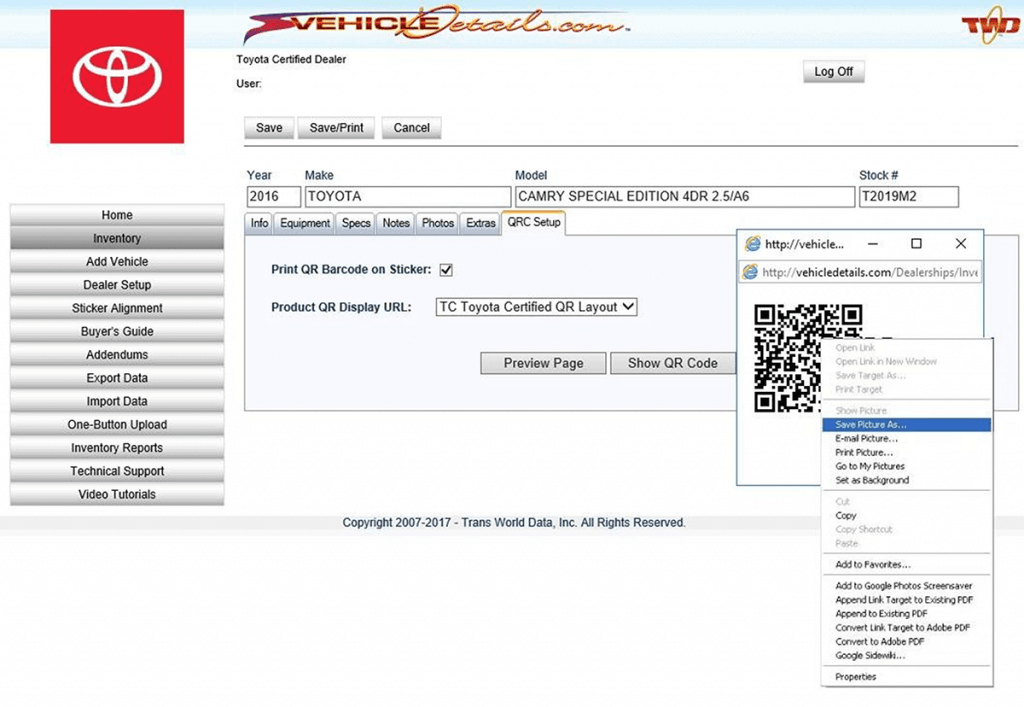
Advertise with the QR Code

You can easily save the QR Code Image for any vehicle and use it for Newspaper Ads or other means of Advertising. Follow these simple instructions to save the QR Code Image.

From the Inventory Screen

  1. Click EDIT next to the vehicle you would like to PREVIEW.
  2. In the Info Tab, click into the VIN Field and highlight the VIN. On your keyboard, hit the Control (CTRL) key and the Letter C to copy the VIN to your clipboard.
  3. Click the QRC Setup Tab at the top of the Vehicle Build Screen.
  4. Click the SHOW QR CODE Button. A pop-up window will appear with the requested image.
  5. With your mouse pointed ON the image itself, click using your RIGHT mouse button and select “SAVE PICTURE AS”
  6. At this point, you are saving the QR Code Image as a JPEG to your computer. You will choose the folder location in the window that appears.
  7. When asked to give the image a File Name, simply paste the VIN that’s saved to your clipboard by using Control (CTRL) and the Letter V on your keyboard.

"Save Picture As" from the Inventory Screen

Save QR Code
The QR Code image is now saved to your computer’s hard drive in the folder that you selected and from this point can be given to your Marketing Department to use when placing Newspaper Ads.

Program Manuals

PROGRAM PDF TCUV TRAINING DECK POLICY & PROCEDURE

Contact your JM&A Group Representative at jmacustomerservice@jmagroup.com