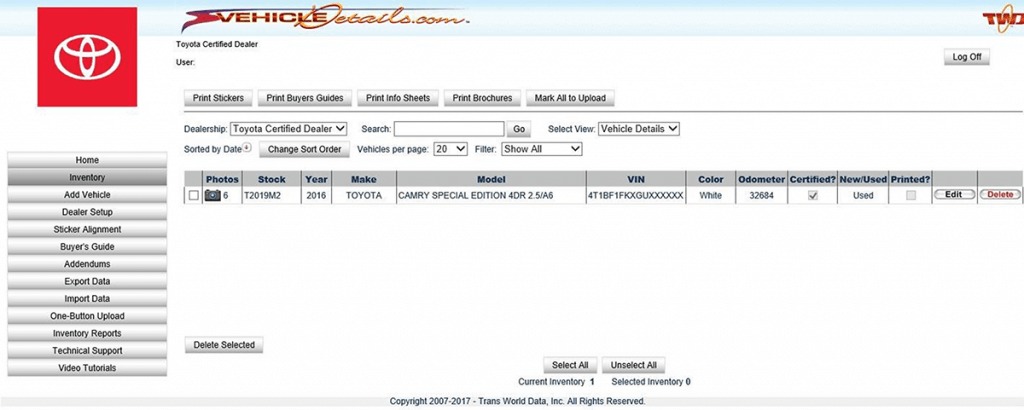
Certified Inventory Management

From the Main Menu Buttons on the left, Select INVENTORY

Edit Certified Vehicles

  1. To EDIT a vehicle, find your vehicle and click the EDIT button at the right.
  2. In the VEHICLE BUILD SCREEN, edit the appropriate fields.
  3. To reprint the sticker when you are finished – click SAVE/PRINT
  4. If you do not need to reprint – just click SAVE to keep your changes

Print Window Stickers

  1. Select the vehicle(s) that you wish to print a Window Sticker by clicking the check box to the left of the vehicle.
  2. Click the PRINT STICKERS button at the top

Delete Sold Vehicles

You cannot undo this action once you have clicked DELETE.

  1. Click the check box to the left of the vehicle(s) you want to delete
  2. Click the DELETE SELECTED button at the bottom of the screen, if you have multiple vehicles selected.
  3. Click DELETE to the RIGHT of the vehicle if you only have one vehicle selected.

Inventory Management

Vehicle Inventory

Program Manuals

PROGRAM PDF TCUV TRAINING DECK POLICY & PROCEDURE

Contact your JM&A Group Representative at jmacustomerservice@jmagroup.com