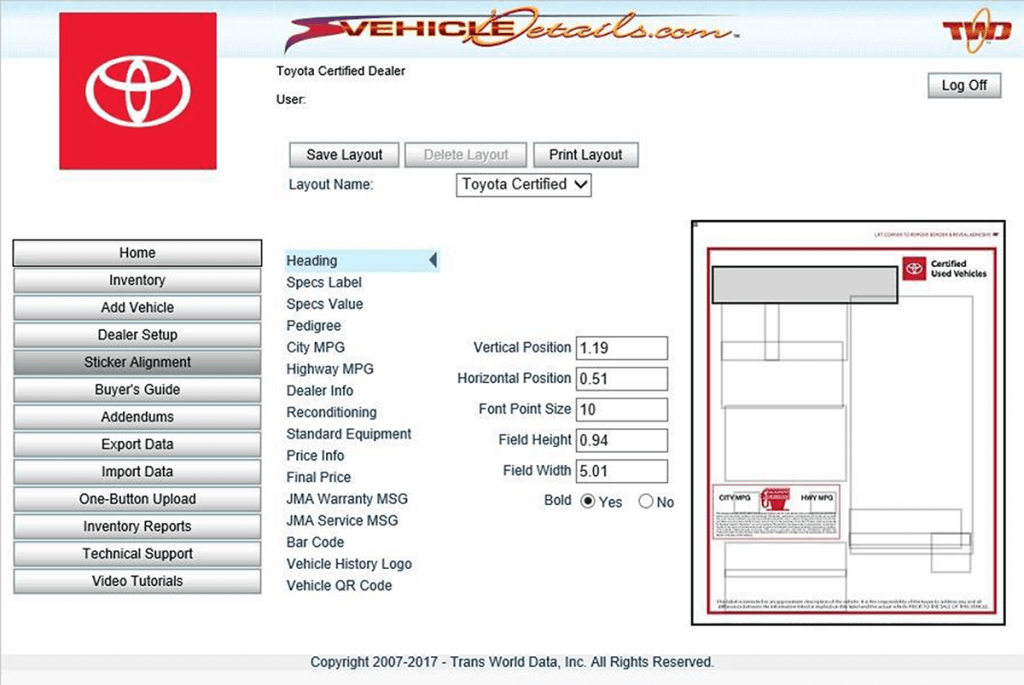
Setup Print Alignment For Your Certified Window Stickers
The window sticker alignment will be already set up for you. It is still recommended that you test out the Sticker Print-Out on blank paper before printing on Sticker Stock. Follow these simple instructions to adjust the printing position of each field on the window sticker:
Select Sticker Alignment at the main menu.
Select the field needed from the list of items that print on the sticker
Make your changes to the Vertical or Horizontal Position
To move the image DOWN, increase the Vertical Position.
To move the image UP, decrease the Vertical Position.
To move the image to the RIGHT, increase the Horizontal Position.
To move the image to the LEFT, decrease the Horizontal Position.
When finished click SAVE LAYOUT in the top left corner.
Return to the Inventory Screen
Select any vehicle by clicking the check box in the left column
Click Print Stickers at the top of the Inventory screen
A pop-up window will appear with the PDF of the Vehicle Window Sticker.
Use the Print Icon in the PDF to print the window sticker on blank paper
Once the alignment is set, you can begin printing on your Certified Window Sticker Stock.