Setting Up The Application

Most of the Dealer Information section of the program will be set up for you. Visit each tab on the dealer setup screen to ensure that the application is configured properly. There are key pieces of information that you will need to complete. If any of your Dealership Information is listed incorrectly, please use the button provided to Request Address Change.

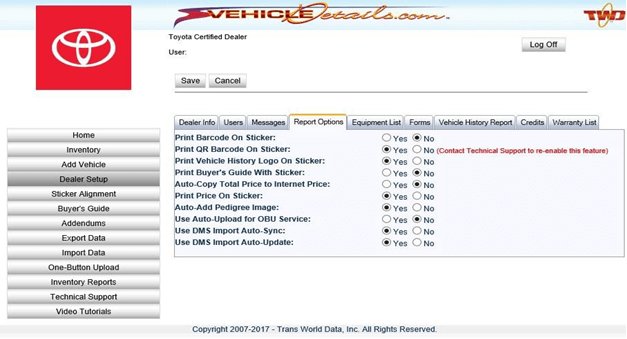
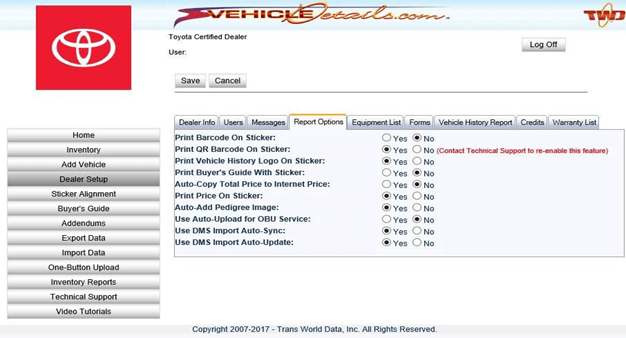
The QR Code Feature will be enabled for all Dealers. This means that for every Certified Vehicle saved to inventory, you can print the QR Code on the Monroney-Like Window Sticker. If you choose to opt-out of using the QR Code Feature, please contact VehicleDetails.com Technical Support at (262) 240-9652 and the feature will be removed from your account.

Dealer Set-Up

Click on Dealer Setup to add important information.

Add Contact Name

Add Email Address: All Vehicle Inquiries generated from the QR Codes will be sent to the email address you have saved to VehicleDetails.com.

Add Website: Add your Dealership Website here to appear on QR Code-generated Vehicle Listing URL.

Vehicle Details Screen #1

Report Options

Visit the Report Options Tab To set up Account Options.

Vehicle Details Screen #2

Program Manuals

PROGRAM PDF TCUV TRAINING DECK POLICY & PROCEDURE

Contact your JM&A Group Representative at jmacustomerservice@jmagroup.com